
Setting Up Google Analytics 4 With Systeme.io and Google Workspace
Setting Up Google Analytics 4 With Systeme.io and Google Workspace
Setting Up Google Analytics on this Systeme Blog
Today’s goal is to get Google tracking set up on this website, so that I can see where my traffic is coming from and what they do once they get here.
At this point you might be wondering…how do I even know to do all these things? Well…once upon a time, over a decade ago, I had a lot of websites. Like, a lot a lot. Those were the heady days of being able to set up a small, niched website and grab Google’s attention long enough to redirect people to Amazon or other retailers, thereby making an affiliate commission on any sales.
A Little About Old Michelle
That was a fun game, until I burnt out on writing for them. I tried outsourcing the article-writing process, but that didn’t work at all; they might have been optimized for the search terms I requested, but they just didn’t attract the necessary traffic like my personally-written content did. Google also shifted their algorithms as well, and traffic eventually dropped off.
I let all those sites die a slow death, allowing their domains to expire once they were no longer receiving traffic. But the systems and processes that I set up for quickly creating sites? Those are still in my head. It just takes a bit longer to pull them off now, since I’m only guaranteed an hour or so of work time per weekday (plus whatever I feel up to on the weekend). 😊
Switching From WordPress to Systeme.io
However, Systeme.io is a new beastie to me. All those sites were built on WordPress, which is now like an old friend. So learning the ins and outs of setting up a blog on Systeme took a bit, but I didn’t decide to document this whole process until after I’d already figured that out in my initial tinkering (sowwies!). However, here’s a vid that walks you through it if you're following along at home.
So today I get to learn how to set up Google tracking on Systeme, using this video. 90 seconds sounds like a bit of a stretch, but let’s see how long it really takes...
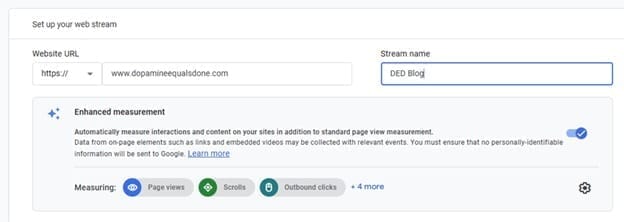
First I set up a new Google Analytics 4 (GA4) account, using the Google Workspace that I set up for MichelleLiggitt.com. That took about 5 minutes, though I admit I didn’t read the entire user agreement in that time. 😆 Then I set this domain up as my first property, as Google steps you through this the first time you create a GA4 account.
Finishing Up
GA4 gave me the tag for my account, and I added it according to the video…pretty simple, actually. About another five minutes. Now, whatever shall I do with the rest of my hour?
Well, I could batch the process of adding more Google Analytics to all the other sites, but I think I’ll do those as I begin using them seriously, since I now have the process documented.
For now, I still need to get this blog post and yesterday’s up, and those tend to take a bit of time to construct, so I’ll do those. See you tomorrow!

This site contains affiliate links; if you purchase from a site linked on this page, I may earn a small commission, at no additional cost to you.


